How to Set Up the Hide UI Hotkey in Aion 2
To hide the User Interface (UI) in Aion 2, you must manually set a custom hotkey in the game's menu.
How to Set Up the Hide UI Hotkey
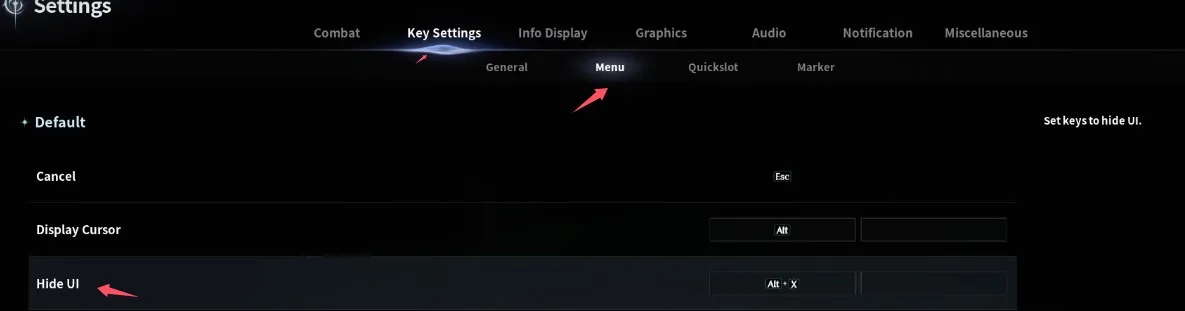
The game does not have a default button to hide the screen clutter for pictures or cinematic views, but you can easily assign your own:
- Open the game menu and go to Settings.
- Click on the Key Settings (Hotkeys) tab.
- Look for the option named Hide UI.
- Click on it and press the key combination you want to use (such as Alt + Z or Ctrl + U).
Once you save your settings, you can press your new shortcut at any time to turn the user interface on and off!
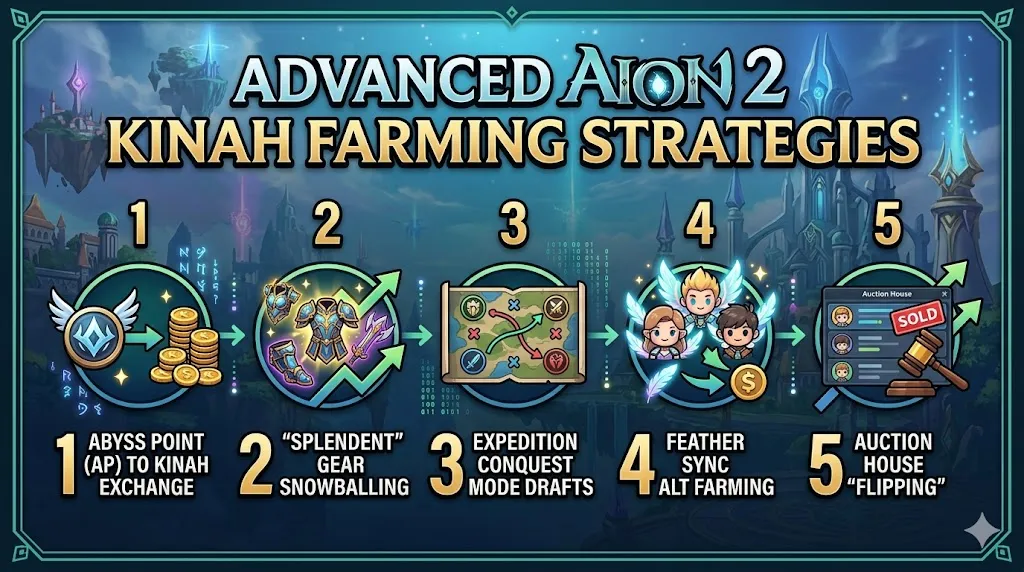
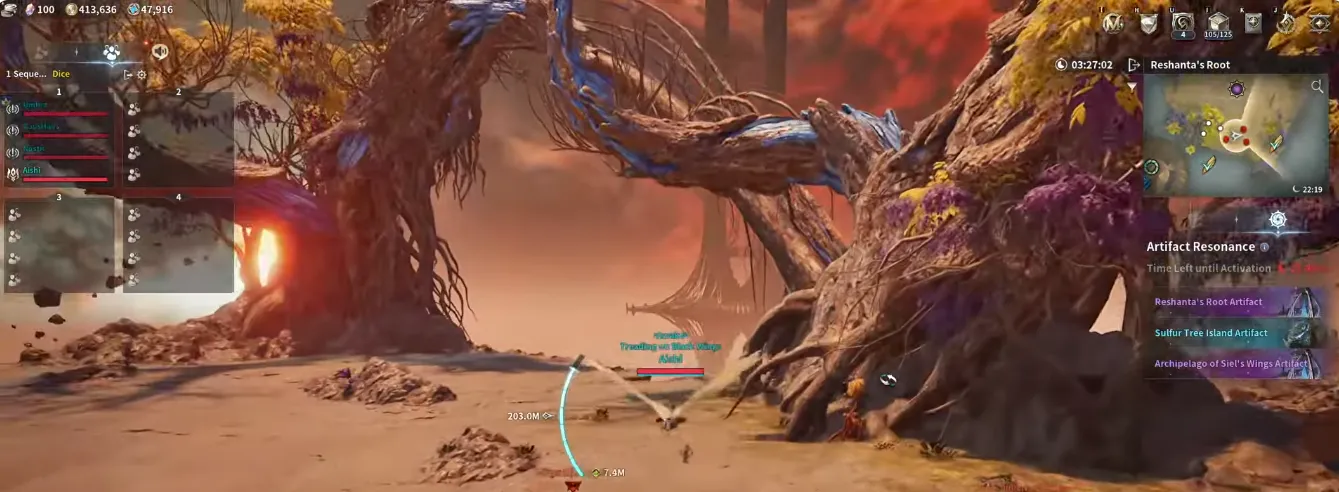
Setting up your Hide UI hotkey is the perfect way to capture the breathtaking landscapes of the game without any distractions. While having a clean screen is great for screenshots, remember that managing your Aion 2 Kinah effectively remains essential for progressing your character and securing the best gear. For the best experience, focus on mastering these controls and optimizing your resources as you explore everything the world has to offer.
Key Features of the Aion 2 UI
The Aion 2 User Interface (UI) gives players a clean and useful layout. It is made to feel like a classic PC MMORPG. You can change many parts of the screen to fit how you like to play.
Top Features of the UI
- Move Everything: You can move and change the size of almost every item on your screen. This helps you keep your view clear during big fights.
- More Skill Buttons: The screen has extra rows of hotbars for all your attacks. You are not stuck with a small skill wheel like in mobile games.
- Combat Meters: The game has built-in tools to show your damage. A DPS meter and Combat Power display help you see how strong you are.
- Easy Inventory: The bag system uses smooth drag-and-drop actions. This makes sorting your loot fast and simple.
- Clean PC View: The PC version hides big mobile buttons. It gives you a wider view of the world and smaller, cleaner menus.
Tips On The Best Hotkey Setups For Fast Combat
The best hotkey setup for fast combat keeps your hand near the WASD keys for quick movement. A great setup lets you use your skills without stretching your fingers or losing control of your character.
Core Movement and Action Keys
- Movement Keys: Keep W, A, S, and D strictly for moving your character.
- Prime Keys: Bind your most frequent attacks to Q, E, R, F, Z, X, and C. These keys sit right next to your fingers and allow for split-second reactions.
- Basic Number Row: Use 1, 2, 3, 4, and 5 for your core rotation skills. Avoid using 6 through 0, as they are too far away to reach quickly during intense combat.
Multipliers for Extra Hotbars
You can double or triple your available skill slots by using modifier keys. This keeps your hands in the exact same spot while opening up entirely new action bars.
- Shift Modifier: Hold Shift while pressing your prime keys (like Shift + Q or Shift + 1) for your main buffs or defensive skills.
- Ctrl Modifier: Use Ctrl combinations for longer cooldowns, potions, or food items.
- Alt Modifier: Use Alt combinations for utility skills, mounts, or opening game menus.
Mouse Bindings and Targeting
- Thumb Buttons: If your mouse has side buttons, bind them to your panic skills, like an instant heal, a shield, or a crowd-control break.
- Targeting: Bind the Tab key to target the nearest enemy. Bind Caps Lock or a mouse button to target friendly party members if you play a support or healing role.